If you need to manually set your firewall exceptions for Transcode 360 here are the settings:
1) Open port 1401 (TCP).
This is using Control Panel with Classic View under Vista-32 bit
Go to Start>Control Panel>Administrative Tools>Windows Firewall with Advanced Security
On the left highlight Inbound Rules
On the right click click New Rule
Choose Port, Click Next
Dot next to TCP, dot next to Specific local ports. In the box type 1401. Click Next
Dot next to Allow the connection. Click Next
On the ‘When does this rule apply’ you can leave all selected if you want but technically you should only need ‘Private’ if when you set up your media center’s network connection you selected home which is private. Leaving the other boxes selected will not hurt anything.
In the Name box put something like T360
Click Finish.
Now under your inbound rules you will see one with the name you specified above (T360). Double click the rule.
Click the Scope tab.
In the Remote IP Address section put a dot next to ‘These IP Addresses:”.
Click the Add button
Put a dot next to ‘Predefined set of computers:’.
Use the pull down and select ‘Local subnet’.
Click Ok.
Click Ok.
That firewall rule is done. We’ve opened the port 1401 on the Media Center for all local traffic (your house).
2) Add Transcode360.exe and Transcode360Tray.exe to the allowed applications
Actually, I don't know that you need to add the exceptions specified in 2). I noticed that I did not add these to my firewall. I am not at home right now to test, but it may be that just port 1401 is all that is required. If you want to add exceptions for the Trascode processes you can. You can use my instructions above but near the beginning instead of choosing port, choose a program, and then browse to the program (C:\Program Files\Transcode360\Transcode360.exe). The rest of the setting will match the instructions above.
Vista users - if you need help with this have a look at this document:
http://windowshelp.microsoft.com/Windows/en-US/Help/4da18300-9044-47b6-9038-595c78db81ab1033.mspx
If you still need help you can email me aamjohns@[nospam]yahoo.com (remove the [nospam] part.
If you want to enable firewall logging to help troubleshoot have a look at this blog post:
http://tobias-tobin.blogspot.com/2009/02/enabling-firewall-logging-in-vista-for.html
Wednesday, December 31, 2008


Saturday, December 27, 2008
Unable to Trancode error with Transcode 360
Although there can be more than one cause of this error I want to document one reason that I've been seeing lately. Specifically, this error is caused by certain characters in the folder path that Transcode 360 cannot handle.
Here is an example T360 log highlighting the area of interest:
27/12/2008 9:30:12 AM *VRB* MEncoderTranscoder loaded
27/12/2008 9:30:12 AM *VRB* VLCTranscoder loaded
27/12/2008 9:30:12 AM *VRB* Using optimal resolutions
27/12/2008 9:30:12 AM Spawning: "C:\Program Files\Transcode360\Wrappers\MEncoderTranscoder\mencoder.exe" -quiet -delay 0.2 -oac lavc -srate 48000 -af lavcresample=48000 -of mpeg -mpegopts format=dvd -o "C:\Users\Public\Transcode360\TranscodeBuffer\Iron Man ‑ (Ultimate 2‑Disc Edition).360" -ovc copy dvd://1 -dvd-device "F:\Movies\Iron Man ‑ (Ultimate 2‑Disc Edition)\Iron Man ‑ (Ultimate 2‑Disc Edition).ISO"
27/12/2008 9:30:27 AM *ERR* Transcoding error:
27/12/2008 9:30:27 AM *ERR*
WARNING: OUTPUT FILE FORMAT IS _MPEG_. See -of help.
Couldn't open DVD device: F:\Movies\Iron Man - (Ultimate 2-Disc Edition)\Iron Man - (Ultimate 2-Disc Edition).ISO
No stream found to handle url dvd://1
Cannot open file/device.
Notice the last line 'Cannot open file/device'. This is due to certain characters in the path. Most likely the "(" and ")". Try removing the movie from the Collection Manager. Change the folder path to eliminate the charaters. In the above example rename the Iron Man folder name to just be Iron_Man. Now re-add it to Collection Manger. This time it should work.
Here is an example T360 log highlighting the area of interest:
27/12/2008 9:30:12 AM *VRB* MEncoderTranscoder loaded
27/12/2008 9:30:12 AM *VRB* VLCTranscoder loaded
27/12/2008 9:30:12 AM *VRB* Using optimal resolutions
27/12/2008 9:30:12 AM Spawning: "C:\Program Files\Transcode360\Wrappers\MEncoderTranscoder\mencoder.exe" -quiet -delay 0.2 -oac lavc -srate 48000 -af lavcresample=48000 -of mpeg -mpegopts format=dvd -o "C:\Users\Public\Transcode360\TranscodeBuffer\Iron Man ‑ (Ultimate 2‑Disc Edition).360" -ovc copy dvd://1 -dvd-device "F:\Movies\Iron Man ‑ (Ultimate 2‑Disc Edition)\Iron Man ‑ (Ultimate 2‑Disc Edition).ISO"
27/12/2008 9:30:27 AM *ERR* Transcoding error:
27/12/2008 9:30:27 AM *ERR*
WARNING: OUTPUT FILE FORMAT IS _MPEG_. See -of help.
Couldn't open DVD device: F:\Movies\Iron Man - (Ultimate 2-Disc Edition)\Iron Man - (Ultimate 2-Disc Edition).ISO
No stream found to handle url dvd://1
Cannot open file/device.
Notice the last line 'Cannot open file/device'. This is due to certain characters in the path. Most likely the "(" and ")". Try removing the movie from the Collection Manager. Change the folder path to eliminate the charaters. In the above example rename the Iron Man folder name to just be Iron_Man. Now re-add it to Collection Manger. This time it should work.
Thursday, November 20, 2008
Rundll32 has stopped working error on Vista
I've seen this problem on two different systems. Both were HP laptops running vista. Some brief time after logon the error comes up the Rundll32 has stopped working. Looking in the event logs I see that the associated module is User32.dll (in both cases). I think I may have found the problem. At least this system to work. I had installed Nvidia drivers for the video from the Nvidia website. This installs a Nvidia Driver Helper Service. I think this service had something to do with the problem. What I ended up doing was uninstalling the Nvidia video drivers through the control panel. Rebooting. Then right clicking my computer, choosing properties, clicking Device Manager, expanding Display, right clicking the standard VGA and choosing update driver (and having it automatically do it from the web). It installs the drivers without the helper service. After doing this, the rundll32 has stopped working errors went away.
Monday, October 20, 2008
USB flash drive annoying launch pad software
Do you want to get rid of the launch pad software on your U3 USB flash drive? I did. I don't use it, and I don't need it. I just want a plain USB flash storage device. The launch pad can be removed. The removal tool is here. Make sure you backup and data stored on the device before you run this tool.
http://www.u3.com/uninstall/
http://www.u3.com/uninstall/
Monday, October 13, 2008
Tool for find paths that are too long on computers or servers
Occasionaly I run into a situation that quickly becomes very frustrating. Let's say I am backing up a user's data to move to a new system. I'm copying their My Documents to a server, or usb drive and the copy bombs out because it encounters a path that is too long. Another scenario is I am setting someone up to synchronize documents stored on a server with their local computer. Again, the sync bombs because it encounters a path that is too long. This can become frustrating because sometimes you have to dig and search to find the offending file. Or, maybe this person has 100 items that are too long. So again you repeat the process of the copy bombing out and having to go search for the offending files.
I made a tool that can search a system on find all the long paths and record them. The offenders and be exported to a .csv file for the record. This way these can be addressed ahead of time before the backup or sync is run.
This is a very simple tool. It is small and quick. If you think this might be of use to you download it here. This is an installer it copies the exe to a folder under program files and creates a start menu shortcut and a desktop shortcut. If you prefer to just get the exe it is here.
This tool will scan local drives, or UNC paths.
I made a tool that can search a system on find all the long paths and record them. The offenders and be exported to a .csv file for the record. This way these can be addressed ahead of time before the backup or sync is run.
This is a very simple tool. It is small and quick. If you think this might be of use to you download it here. This is an installer it copies the exe to a folder under program files and creates a start menu shortcut and a desktop shortcut. If you prefer to just get the exe it is here.
This tool will scan local drives, or UNC paths.
Sunday, October 12, 2008
Citrix connection hangs on 'Negotiating Capabilities'
This is an annoying issue that occurs in an inconsistent manner. Fortunately the fix is easy.
The fix involves deleting some keys from the registry.
Run regedit (Start>Run>type regedit in the open box and click OK)
Expand HKEY_LOCAL_MACHINE\SOFTWARE\Microsoft\MSLicensing
Delete the subkeys HardwareID and Store
Try this Citrix connection again. This time it should pass Negotiating Capabilities and work.
You might also want to change the permissions on the MSLicensing key. Users and Power Users should have Full Control permissions to it and all subkeys.
The fix involves deleting some keys from the registry.
Run regedit (Start>Run>type regedit in the open box and click OK)
Expand HKEY_LOCAL_MACHINE\SOFTWARE\Microsoft\MSLicensing
Delete the subkeys HardwareID and Store
Try this Citrix connection again. This time it should pass Negotiating Capabilities and work.
You might also want to change the permissions on the MSLicensing key. Users and Power Users should have Full Control permissions to it and all subkeys.
Adding movies to My Movies so they can be accessed from extenders or other media centers
This is covered in the MyMovies Mulitzone documentation. I will also describe how to properly add the movies to the collection so the path is usable by extenders and other comptuers.


This dialog will come up. Notice the movie has a local path:

Click the little button the red arrow is pointing to in the image above.


Notice (in the image below) we now have a network path which is what we need.

You perform this procedure even if the computer you are adding is the same computer the movie is stored on (ie: your media center).
Add a title to MyMovies through the Collection Manager.
Click the Add Online button.
The Browse for Folder dialog comes up.
Find the node called Network. Click to expand it. Find the computer where the movie is stored (ie: your media center computer).

Expand to the location of the folder containing the movie (there needs to be a Video_TS folder inside)
With the movie folder highlighted click Ok.

Click 'Add owned for keeps' in MyMovies and now the movie is added with the proper path.
This puts the movie into the database with a path like file://vista-mce/F/Movies/BekindRewind rather than F:\Movies\BekindRewind. The latter path will not work when network devices try to access the movie.
If you have already added movies using the local path format, ie: F:\Movies\BekindRewind you can fix them through the Collection Mananger.
With the Collection Manager open browse and select a title on the left.
Under the Edit Title tab click the discs button:

This dialog will come up. Notice the movie has a local path:

Click the little button the red arrow is pointing to in the image above.
That bring up the Folder Browse Dialog.
Again, scroll to Network, expand, find the computer with the movies, expand it, find the movie folder, highlight it, and click OK:


Notice (in the image below) we now have a network path which is what we need.

Click Ok.
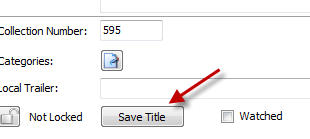
Now we are back on the Edit Title tab. Towards the bottom left is the Save Title button. Click it so the changes we just made get save.

The edited movie should now be accessible to media centers and extenders.
Why do you have to do this? A remote device will not understand F:\Movies\movie. A path like that says 'the movie is on myself'. But the movie is not, it is on another computer. So the network path tells the device, go look here on this other computer.
Subscribe to:
Posts (Atom)